
How Do I Create a Google Quiz? A Step-by-Step Guide for Teachers
Google Forms offers a straightforward way to create quizzes for your classroom, but the process isn't immediately obvious if you're new to the platform. This guide walks through exactly how to create a Google quiz, along with tips for making your quizzes more effective.
Getting Started with Google Forms
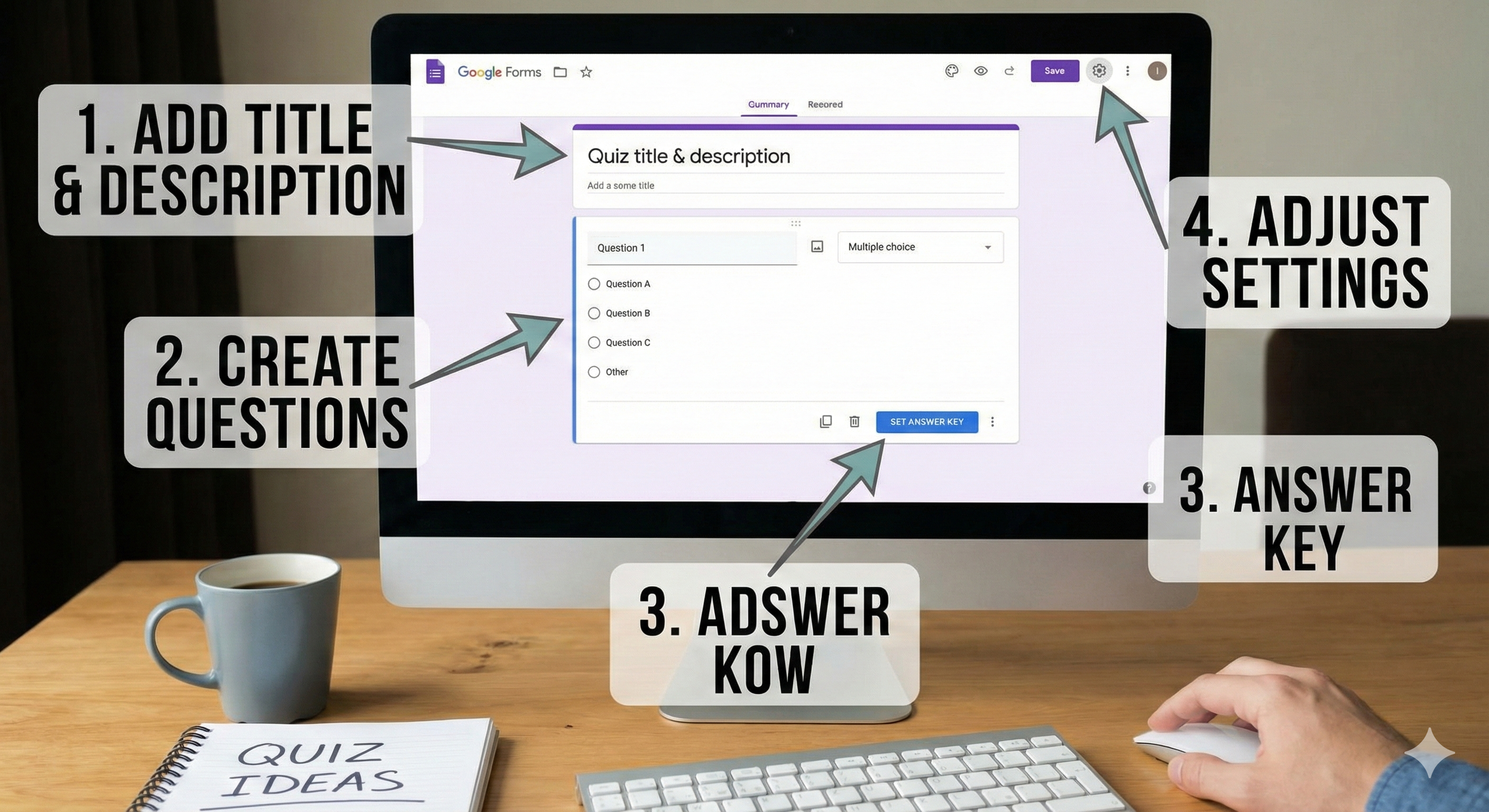
Before diving into quiz mode, you need to access Google Forms:
- Navigate to forms.google.com whilst logged into your school Google account
- Click the blank form with the '+' sign, or choose a template
- Give your form a title and optional description
At this point, you have a basic form. The quiz magic happens in the settings.
Enabling Quiz Mode
Here's where forms become quizzes:
- Click the Settings cog icon (top right)
- Select the Quizzes tab
- Toggle Make this a quiz to on
- Configure your preferences:
- Release grade: Immediately after submission, or later after manual review
- Respondent settings: Whether students can see missed questions, correct answers, and point values
These choices significantly affect the student experience, so consider them carefully.
Adding Questions
Return to the form builder and start adding content:
Multiple Choice Click the '+' button to add questions. Multiple choice works best for auto-grading. Select the correct answer by clicking on it, then assign points.
Checkboxes For 'select all that apply' questions, use checkboxes. You can require multiple correct selections, and partial credit is available.
Short Answer Useful for one-word or brief responses. Google can auto-grade these if you provide acceptable answers, though spelling variations cause issues.
Paragraph Long-form responses require manual grading but allow for deeper assessment.
Linear Scale Rating scales from 1-10 (or any range) work for surveys or opinion-based questions.
Assigning Point Values
For each question:
- Click the question to edit
- Look for Answer Key at the bottom
- Select the correct answer(s)
- Enter the point value
- Optionally add feedback for correct and incorrect answers
Feedback is genuinely useful. When students see why an answer was wrong, not just that it was wrong, learning actually happens.
Enhancing Your Quiz
Add Images Questions can include images, which is particularly valuable for subjects like science, geography, or art. Click the image icon within any question to upload or search for pictures.
Add Videos Embed YouTube videos directly into quizzes. Students can watch before answering related questions, creating multimedia learning experiences.
Organise with Sections Long quizzes benefit from sections that break content into manageable chunks. Add sections via the toolbar to create page breaks.
Shuffle Options Prevent copying by enabling question and/or answer shuffling in Settings. This creates different experiences for students sitting near each other.
Connecting to Google Classroom
Once your quiz is ready:
- Open Google Classroom
- Navigate to the relevant class
- Click Classwork then Create then Quiz Assignment
- Google Classroom will automatically create a blank quiz form, or you can attach an existing one via the Google Drive icon
- Set your due date, points, and topic
- Assign to students
The integration means grades can flow directly into your Classroom gradebook, reducing manual data entry.
Limitations to Consider
Google Forms quizzes work well for basic assessment, but several limitations affect classroom use:
No Real-Time Competition Students complete quizzes individually, asynchronously. The competitive energy that makes quiz games exciting is absent.
Limited Question Types Complex interactions, drag-and-drop, or matching questions aren't available without workarounds.
Basic Visuals Forms look like... forms. They're functional, not exciting. Students recognise the format and approach it as testing rather than engaging activity.
No Live Results You can't see how students are performing during the quiz. Data appears only after submission.
When Google Forms Works Well
Google Forms quizzes suit:
- Homework or asynchronous assessment
- Self-paced revision activities
- Simple knowledge checks
- Situations where basic is sufficient
When You Need More
For live, interactive, competitive quiz experiences, purpose-built platforms offer what Forms cannot. Pondera creates the classroom energy that transforms assessment from obligation to excitement.
The real-time leaderboards, simultaneous participation, and game-like mechanics make students want to engage. You see understanding develop (or struggle) live, enabling immediate teaching adjustments.
A Practical Approach
Many teachers use both. Google Forms handles basic asynchronous assessment efficiently. Pondera delivers the memorable, engaging quiz moments that students actually look forward to. The tools complement rather than compete.
Ready to see what interactive quizzes can do for your classroom? Pondera shows you a different approach to student engagement.